

 Türkiye (Türkçe)
 Worldwide (English)
You can use cPanel's inbuilt file manager instead of an FTP program.
1. Log in to your cPanel account.
2. In the Files section, click on File Manager.

3. In cPanel File Manager, navigate to the directory where you want to upload your files to. For example, should you wish to upload your files to the public HTML directory, you must first go to /public_html. On the left side, in the list of directories, double click on the public_html directory.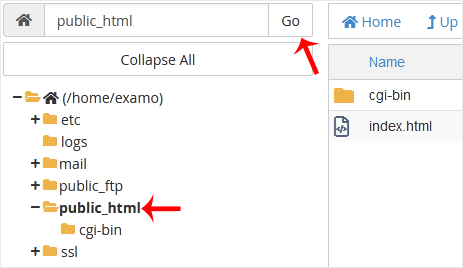
4. Now click on Upload.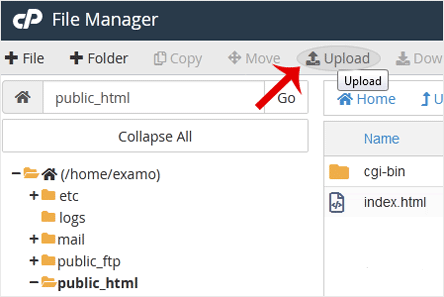
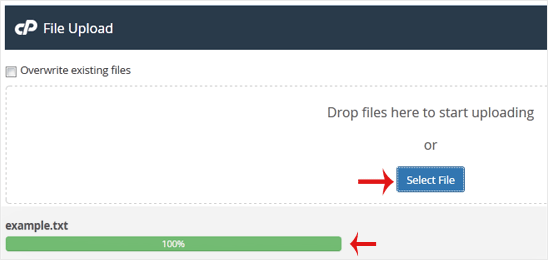
5. Click on Select File and choose the file you want to upload from your computer. Click open and the upload process will begin. You can also drag and drop files from your computer in the upload box.